







Accepting payments used to mean relying on a bulky cash register and a fixed checkout counter. Today, you can accept credit cards and digital payments with just your phone or tablet. Mobile POS systems make it possible to take modern payments without the complexity of traditional setups.
A mobile POS system is the software, hardware, and payment solutions that let you ring up sales, accept payments, and manage transactions from anywhere, not just behind the counter.
These systems come in a few different setups. You can go phone-only with Tap to Pay,connect a card reader for added flexibility, or use a tablet with a stand for a more traditional checkout experience. This guide breaks down the best mobile POS systems by business type, what actually matters when choosing one, and how to get up and running quickly.
Key Takeaways
- A mobile POS system lets you run your checkout from anywhere, without being tied to a fixed counter or traditional setup.
- You can accept payments with just your phone (Tap to Pay) or add a card reader for more flexibility, reliability, and broader payment coverage.
- The best mobile POS system depends on your business type and workflow—retail, restaurant, services, or on-the-go—not just features.
- Beyond features, evaluate total cost (processing, software, hardware) and support quality, since both directly impact long-term usability and scalability.
Quick Comparison: Best Mobile POS Systems at a Glance
As with any point-of-sale solution, choosing a mobile POS isn’t just about features. It really comes down to how well the system fits your selling workflows and requirements. Here’s a quick side-by-side look at the top options and where each one stands out.
| Provider | Best for | Mobile setup | Core strengths | Pricing model | Contract flexibility | Integrations | Support |
| Lightspeed Commerce | Retail, multi-location | Tablet + reader | Advanced inventory, omnichannel | Software subscription + flat rate | Monthly subscription | Accounting, ERP, eCommerce | Help center, phone, chat |
| Toast | Restaurants | Handhelds + terminals | Tips, modifiers, kitchen workflows | Software subscription + flat rate | Monthly subscription | Accounting, Shift scheduling, F&B inventory management | Help center, phone, chat |
| PayPal | Services, invoicing | Phone + reader | Invoicing, online payments | Flat rate | No long-term | eCommerce, Accounting, Marketplaces | Help center, phone, chat |
| Square | Pop-ups, small retail | Phone, reader | Fast setup, ease of use | Flat rate | Flexible | eCommerce, Scheduling, Shipping | Help center, phone, chat |
| Kurv | Fast setup, simple payments | Phone, reader | Contactless, simple onboarding | Flat rate | Flexible | eCommerce, Accounting, ERP, CRM, Customer Support, POS, Shipping | Help center, phone, chat |
The Best Mobile POS Systems by Business Type
The shift toward mobility isn’t just a trend; it’s the new standard. Industry data shows that 64% of U.S. small businesses have adopted mobile-based transaction solutions to improve efficiency and reduce overhead costs.
So, if you’re also looking to adopt mobile solutions, you should know that the right system will vary from one merchant to another. To help you navigate your decision, here’s a cheat sheet that breaks down the best mobile POS systems by business type.
Best mobile POS for retail & inventory-heavy shops: Lightspeed Retail
- Who it’s for: Inventory-based brick-and-mortar retailers that sell a lot of physical goods.
- Why it fits: Lightspeed Retail offers robust inventory management to support large catalogs and multi-store merchants. These include variants and composites, built-in inventory counts, stock transfers, and more.
- Watch-outs: Lightspeed offers sophisticated retail capabilities, which might be too complex for small or non-inventory-heavy merchants.
- Ideal setup: Lightspeed on an iPad with an external payment terminal.
Best mobile POS for restaurants, cafés, and food trucks: Toast
- Who it’s for: Restaurants and food service businesses that need to manage orders, staff, and kitchen workflows in real time.
- Why it fits: Designed for hospitality businesses, Toast handles tips, menu modifiers, and tabs with ease. Plus, it supports handheld ordering so staff can take orders and payments tableside. It also connects front-of-house and kitchen workflows, helping teams move faster and reduce errors during busy shifts.
- Watch-outs: Toast typically requires a contract and is more tailored to restaurants, so it may not be ideal for non-food businesses.
- Ideal setup: Toast handheld devices for servers, paired with terminals and kitchen display systems.
Best mobile POS for field services and on-the-go teams: PayPal
- Who it’s for: Service-based businesses like contractors, cleaners, consultants, and anyone who invoices or gets paid in the field.
- Why it fits: PayPal combines mobile payments, invoicing, deposits, and recurring billing in a single system. You can accept cards on your phone, send invoices on the spot, or use a virtual terminal to key in payments. Funds are typically available quickly into your PayPal account, which helps with cash flow.
- Watch-outs: PayPal’s POS offerings aren’t as robust as specialized retail or restaurant systems. Also, account holds or reviews can occasionally disrupt access.
- Ideal setup: Phone-only Tap to Pay, or phone + Bluetooth reader like the PayPal Mobile Card Reader.
Best mobile POS for pop-ups, markets, and events: Square
- Who it’s for: Small retailers, pop-up shops, and vendors who need to start selling quickly with minimal setup.
- Why it fits: Square is known for fast onboarding and an intuitive app. You can start taking payments in minutes with just your phone or a simple reader. It also supports contactless payments and works well for line busting during busy events (common at pop-ups and markets).
- Watch-outs: Processing fees can add up as you scale, and advanced features may require add-ons.
- Ideal setup: Phone + compact reader like Square Contactless and Chip Reader, with QR codes as a backup payment option.
Best mobile POS if you want to start taking payments fast: Kurv
- Who it’s for: Small businesses and solo operators who want a simple, no-friction way to accept payments right away.
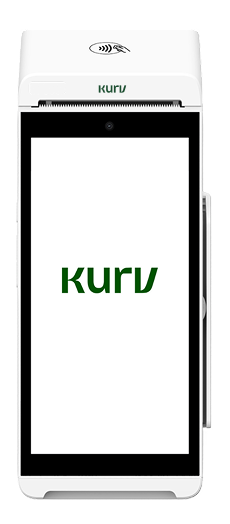
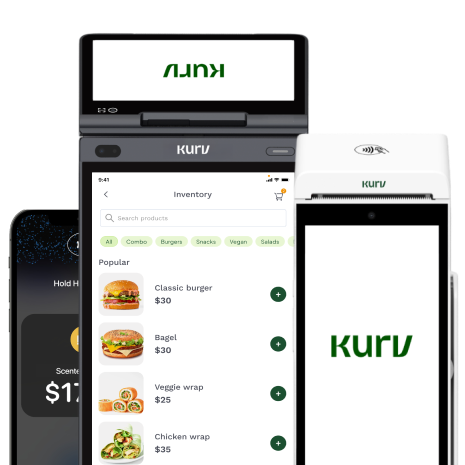
- Why it fits: Kurv focuses on speed and simplicity. You can get up and running quickly without heavy hardware or complicated onboarding. It’s built around contactless payments, predictable pricing, and a clean interface, making it easy for anyone to start accepting payments without a learning curve.
- Watch-outs: Best suited for businesses that prioritize simplicity, speed, and a streamlined payment setup.
- Ideal setup: Phone-first Tap to Pay with minimal or no additional hardware.
How to Choose the Best Mobile POS for Your Small Business
If you’re shopping for a mobile point-of-sale system, following the steps below will help you narrow down your choice.
Start with your workflow
The POS system you choose should be designed for your workflows, not the other way around. Having the occasional workaround is fine, but if you have to rejig your processes just to fit a system, it’s a sign the tool isn’t the right fit.
Before looking at solutions on the market, take some time to map out your processes. Document the flow of how you take orders, accept payments, manage inventory or services, and close out transactions.
For example, if you’re a retail store, map out how products are stocked, sold, and tracked across locations. Run a quick service establishment or restaurant? Outline how orders are taken, modified, sent to the kitchen, and paid for.
Choose your payment acceptance setup
Your setup should match how and where you sell, whether that’s on the floor, at a table, or out in the field.
- Tap to Pay – You can start accepting contactless payments right from your phone, without needing extra hardware.
- Card reader – Having a separate card terminal is a solid option for durability and flexibility. Card readers can connect to your mobile device and accept chip, swipe, and contactless payments across a wider range of scenarios.
- QR payments – QR codes are great for self-serve checkout flows, events, or invoices. You can let customers scan and pay without slowing things down.
Must-have features checklist
Next, create a list of must-have capabilities. This list will be specific to your business and your needs. But if you need help getting started, here are some checklist items to help you prioritize when evaluating systems.
- Inventory (for retail)
- Tips + modifiers (for food)
- Invoicing/estimates (for services/B2B)
- Recurring payments (memberships, subscriptions)
- Reporting + multiple users
- Integrations (accounting, scheduling)
Pricing: what to compare and what to look out for
Pricing can look simple upfront, but the details matter once you start processing volume. Consider the following:
- Processing fees vs software fees vs hardware costs – Most providers split pricing across three buckets: transaction fees, monthly software, and hardware. Some charge higher processing fees without a subscription, while others charge monthly but offer lower rates. Look at your average ticket size and volume to see what actually costs less over time.
- Contract terms, PCI/program fees, chargebacks/support – Dig into the fine print. Some providers require long-term contracts or charge early termination fees. Others add PCI compliance or platform fees. It’s also worth checking how chargebacks are handled and what level of support you’ll get when something goes wrong.
- “Free POS” explanation (usually tied to processing) – “Free” POS software is often subsidized through processing fees or limited feature tiers. That can work if you’re just starting out, but as you grow, those fees can add up quickly. Always look at the total cost, not just the upfront price.
Prefer transparent pricing and a simpler setup?
See Kurv options for your business type.

Hardware guide: what you actually need (and what you don’t)
You don’t need a full checkout counter to start. If you’re looking for a hardware setup with just the essentials, you can explore different options depending on your checkout process and business needs.
Phone-only vs reader vs full kit
There are three common ways to set up your mobile POS. You can use your phone (and nothing else), connect to a card reader, or choose a full kit.
Phone-only (Tap to Pay) is the simplest. You accept contactless payments directly on your phone. It’s fast and doesn’t require extra hardware. However, it may feel limiting for high-volume environments.
Phone + reader adds flexibility. You can accept chip, swipe, and contactless payments, and it’s generally more reliable for busy days.
A full kit usually includes a tablet, stand, and terminal. It looks more like a traditional checkout and works well if you have a lot of space, have a large catalog, or prefer a larger sales screen.
Recommended starter kits by scenario
Here are simple, proven setups based on how different businesses operate.
Pop-up kit – Phone with Tap to Pay plus a backup reader. This kit is quick to set up and reliable in busy or outdoor environments.
Retail kit – iPad on a stand with a connected terminal and barcode scanner. Great for smoother checkout and better inventory handling.
Service kit – If you’re not handing physical goods, you can have a phone-first setup with an optional reader. That way, you’re able to send invoices, take deposits, and accept payments on-site without extra gear.
Restaurant handheld – Restaurants are best served by a handheld device for tableside ordering and payments. It speeds up service and reduces back-and-forth between staff and the kitchen.
Implementation Checklist: Get Live Quickly
A little prep goes a long way. Get your essentials in place so you can set up your POS in one pass and start taking payments sooner.
Prepare your docs and requirements
Before you sign up for a mobile POS, gather a few basics so you’re not stuck mid-setup. Most providers will ask for:
- EIN or SSN
- Business name and address
- Bank account and routing number for deposits
- Contact details (email and phone)
- Basic business description (what you sell or services offered)
- Estimated average ticket size and monthly volume
Setup steps
Once you have your info ready, the setup itself is pretty straightforward, especially if you only need the essentials. Steps include:
- Download the POS app and create your account
- Enter business details and connect your bank account
- Activate payments in the dashboard
- Set up Tap to Pay or pair your card reader
- Run a test transaction and check receipts/refunds
- Add products, services, or pricing if needed
- Train staff on basic flows like payments and refunds
Common delays and how to avoid them
Most delays stem from missing or mismatched information. Some examples include your business name not matching your bank account or submitting incomplete information. To avoid these hiccups, double-check everything before submitting.
Another common issue is waiting too long to test payments. Don’t assume everything works out of the box. Run a few real transactions early to catch issues before you’re in front of customers.
Lastly, don’t overcomplicate your setup. Start simple, get comfortable, then layer in features like reporting, integrations, or advanced workflows once you’re live.
Still Not Sure Which Mobile POS to Choose?
There’s no single “best” POS for every business. What matters is choosing a system that supports your workflow, keeps payments simple, and doesn’t surprise you with pricing.
Start by getting clear on your non-negotiables, like contactless payments, inventory, tips, or invoicing. Then match your setup to how you sell, whether that’s at a counter, tableside, on the go, or at events. Finally, sanity-check the total cost across software, processing, hardware, and terms.
If you’re still torn, that’s normal. Most lists miss the nuances of your workflow and pricing. Kurv mobile solutions are straightforward and we can help you map a simple setup with transparent pricing and fast onboarding.
Talk to a payments specialist or get a quick recommendation.
Frequently Asked Questions
Can I use my phone as a POS system?
Yes. Most modern mobile POS systems let you turn your phone into a payment device using Tap to Pay. That means you can accept contactless cards and digital wallets without extra hardware. For a lot of small businesses, that’s enough to get started. If you need to accept chip cards or want a more traditional checkout feel, you can always add a reader later.
What’s the difference between POS and mobile POS?
A traditional POS is typically built around a fixed checkout setup, like a register or countertop terminal. A mobile POS performs the same core functions but runs on a phone or tablet, allowing you to take payments from anywhere. While the functionality can be very similar, the key difference is flexibility and how the system fits into your day-to-day workflow.
How much does a mobile POS system cost?
It depends on how the provider structures pricing. Some charge a monthly subscription plus lower processing rates, while others skip the subscription and make money on transaction fees. Hardware can be free, subsidized, or a one-time cost.
Do I need a card reader if I have Tap to Pay?
Not necessarily. With a mobile payment app, you can use Tap to Pay to accept contactless cards and digital wallets directly on your phone. That said, a card reader gives you more flexibility, especially for chip cards, swipe fallback, or situations where Tap to Pay isn’t ideal. Many businesses start with phone-only acceptance and add a reader as they grow.
Which mobile POS is best for restaurants?
Restaurant workflows are different enough that it’s worth choosing a system built specifically for food service, if that’s your industry. Platforms like Toast are designed for things like tips, modifiers, tabs, and kitchen coordination.
What POS system does not charge fees?
There’s no such thing as a “no-fee” POS when you’re accepting card payments. If the software is free, the provider is typically making money through processing fees. Some systems offer subscription pricing with lower transaction rates, which can be more cost-effective as you grow. The key is looking at total cost, not just what’s advertised upfront.
What’s the easiest mobile POS for a small business to set up?
The easiest systems are the ones that let you sign up, download an app, and start taking payments the same day. Solutions like Kurv are designed for quick setup, so you can start accepting payments with minimal hardware and onboarding.

